

鸿蒙 HarmonyOS NEXT端云一体化开发-认证服务篇
创始人
2024-12-15 03:34:42
一、开通认证服务
地址:AppGallery Connect (huawei.com)
步骤: 1 进入到项目设置页面中,并点击左侧菜单中的认证服务 2 选择需要开通的服务并开通 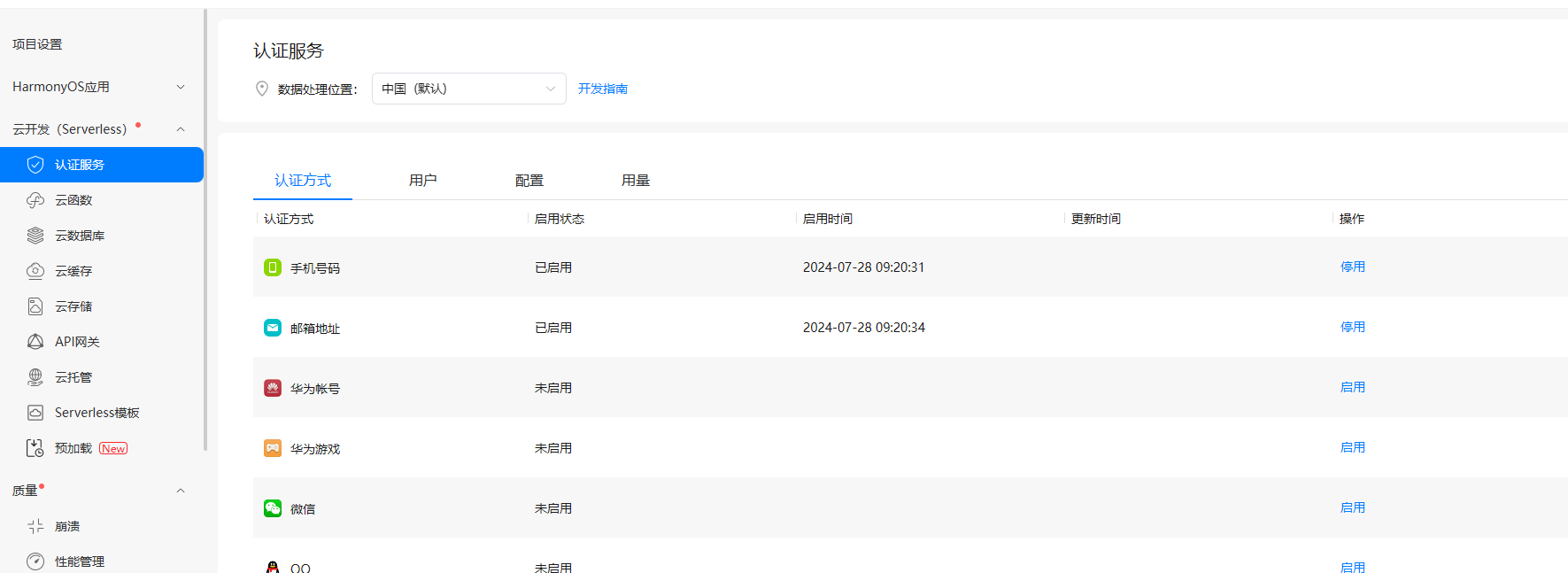
二、端侧项目环境配置
添加依赖
entry目录下的oh-package.json5 // 添加:主要前2个依赖 "dependencies": { "@hw-agconnect/cloud": "^1.0.0", "@hw-agconnect/hmcore": "^1.0.0", "@hw-agconnect/auth-component": "^1.0.0", // 可选 "long": "5.2.1" } 开通网络权限
// 文件名:module.json5 // 路径:src/main/module.json5 "requestPermissions": [ { "name": "ohos.permission.INTERNET" // 网络权限 }, ] 更新agconnect-services.json文件
// AGC网站提示:下载最新的配置文件(如果您修改了项目、应用信息或者更改了某个开发服务设置,可能需要更新该文件) 为了确保项目不会出错,建立更新下该配置文件 三 认证组件界面示例
- 新建Login.ets页面,并设置成为应用首页

- Login.ets调用认证组件
import { AuthMode, Login } from '@hw-agconnect/auth-component'; import router from '@ohos.router'; @Entry @Component struct MyLogin { @State message: string = 'Hello World'; build() { Column(){ Text("test") // auth-component 中的组件Login Login({ modes:[AuthMode.PHONE_VERIFY_CODE] // 手机验证码登录 , onSuccess:()=>{ //登录成功后的回调 router.pushUrl({url:'pages/Index'}) } }){ Button("登录").height(60).width("100%") } }.width("100%").height("100%") } } 

四、自定义登录组件
// 参考链接:https://developer.huawei.com/consumer/cn/doc/AppGallery-connect-Guides/agc-auth-harmonyos-arkts-login-phone-0000001631566338 import cloud from '@hw-agconnect/cloud'; import { Auth, VerifyCodeAction } from '@hw-agconnect/cloud'; @Entry @Component struct PageTest { @State verificationBtnStr:string= "验证码" phone:string = "" @State verifcationBtnStatus:boolean = true @State timer :number = 0 @State countDown:number = 60 // 云端获取 getCloudQrCode(){ cloud.auth().requestVerifyCode({ action: VerifyCodeAction.REGISTER_LOGIN, lang: 'zh_CN', sendInterval: 60, verifyCodeType: { phoneNumber: this.phone, countryCode: '86', kind: "phone" } }).then(verifyCodeResult => { //验证码申请成功 console.log(JSON.stringify(verifyCodeResult)) AlertDialog.show({ title: "提示", message: "获取验证码成功", }) }).catch((error: Promise) => { AlertDialog.show({ title: "提示", message: "获取验证码失败", }) //验证码申请失败 }); } // 初始化参数: initData(){ clearInterval(this.timer) this.verifcationBtnStatus = true this.verificationBtnStr = "验证码" this.countDown = 60 } // 发送验证码 getCode(){ if(this.phone==''){ AlertDialog.show({ title: "提示", message: "请输入手机号码", }) return; } this.verifcationBtnStatus = false this.getCloudQrCode() this.timer = setInterval(()=>{ this.verificationBtnStr = `${this.countDown}s` if(this.countDown===0){ this.initData() return; } this.countDown -- },1000) } build() { Column({space:20}){ TextInput({placeholder:'请输入手机号:'}).width("100%").height(60).margin({top:20}) .onChange((value)=>{ this.phone = value }) Row(){ TextInput({placeholder:"请输入验证码"}).layoutWeight(1).margin({right:20}) Button(this.verificationBtnStr).width(120).onClick(()=>{ this.getCode() }).enabled(this.verifcationBtnStatus) }.width("100%").height(60) Button("登录").width("100%").height(40).padding({ left:50,right:50 }).backgroundColor("#ff08be4b") }.width("100%").height("100%").padding({left:10,right:10}) } } - 效果:

五、邮箱登录验证
import cloud from '@hw-agconnect/cloud'; import { Auth, VerifyCodeAction } from '@hw-agconnect/cloud'; import router from '@ohos.router'; @Entry @Component struct PageTest { @State verificationBtnStr:string= "验证码" @State phone:string = "" @State verifcationBtnStatus:boolean = true @State timer :number = 0 @State countDown:number = 60 @State data:string = "" @State verifCode:string = "" // 注销 loginOut(){ cloud.auth().signOut().then(() => { //登出成功 AlertDialog.show({ title: "提示", message: "注销用户成功", }) }).catch(() => { //登出失败 }); } //登录 login(){ // 注册 this.data = this.verifCode cloud.auth().signIn({ credentialInfo: { kind: 'email', email: this.phone, verifyCode: this.verifCode } }).then(user => { //登录成功 router.replaceUrl({url:'pages/Index'}) }).catch((error:Promise) => { //登录失败 this.data= JSON.stringify(error) AlertDialog.show({ title: "提示", message: JSON.stringify(error), }) }); } // 云端获取 getCloudQrCode(){ cloud.auth().requestVerifyCode({ action: VerifyCodeAction.REGISTER_LOGIN, lang: 'zh_CN', sendInterval: 60, verifyCodeType: { email: this.phone, kind: "email", } }).then(verifyCodeResult => { //验证码申请成功 console.log(JSON.stringify(verifyCodeResult)) this.data = JSON.stringify(verifyCodeResult) AlertDialog.show({ title: "提示", message: "获取验证码成功", }) }).catch((error: Promise) => { AlertDialog.show({ title: "提示", message: "获取验证码失败", }) //验证码申请失败 }); } // 初始化参数: initData(){ clearInterval(this.timer) this.verifcationBtnStatus = true this.verificationBtnStr = "验证码" this.countDown = 60 } // 发送验证码 getCode(){ if(this.phone==''){ AlertDialog.show({ title: "提示", message: "请输入用户邮箱", }) return; } this.verifcationBtnStatus = false this.getCloudQrCode() this.timer = setInterval(()=>{ this.verificationBtnStr = `${this.countDown}s` if(this.countDown===0){ this.initData() return; } this.countDown -- },1000) } build() { Column({space:20}){ TextInput({placeholder:'请输入手机号:'}).width("100%").height(60).margin({top:20}) .onChange((value)=>{ this.phone = value }) Row(){ TextInput({placeholder:"请输入验证码"}).layoutWeight(1).margin({right:20}) .onChange((value)=>{ this.verifCode =value }) Button(this.verificationBtnStr).width(120).onClick(()=>{ this.getCode() }).enabled(this.verifcationBtnStatus) }.width("100%").height(60) Button("登录").onClick( ()=>{ this.data = "1aaaaaa" this.login() }).width("100%").height(40).padding({ left:50,right:50 }).backgroundColor("#ff08be4b") Button("注销").onClick( ()=>{ this.data = "1aaaaaa" this.loginOut() }).width("100%").height(40).padding({ left:50,right:50 }).backgroundColor("#ff08be4b") Text(this.data).width("100%").height(200).backgroundColor(Color.Pink) }.width("100%").height("100%").padding({left:10,right:10}) } } - 获取验证码

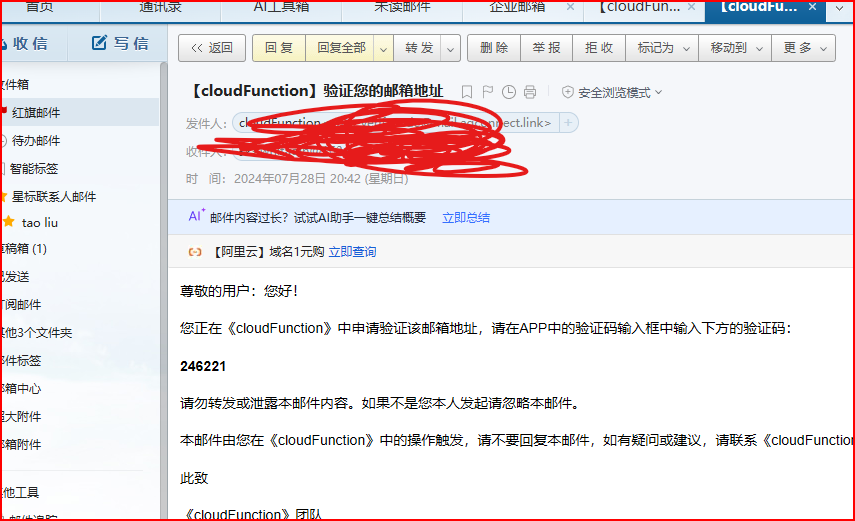
- 登录

// 提示用户已经登录过了,需要登出后才能重新登录 // 重而需要调用注销按钮中的登出方法 cloud.auth().signOut() 
- 点击注销按钮
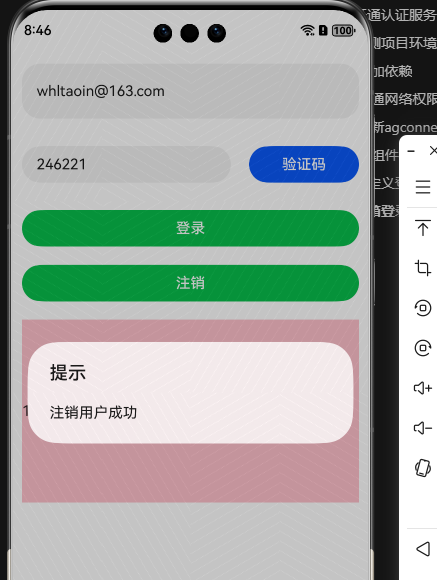
- 点击登录后,跳转到Index页面中

相关内容
热门资讯
上海移动宣布5G-A超级上行网...
来源:滚动播报 (来源:上观新闻) 采访对象提供 5月17日,“智能加码 科创申城” 中国移动上海...
英伟达CEO黄仁勋痛斥将GPU...
IT之家 5 月 17 日消息,英伟达首席执行官黄仁勋受邀担任斯坦福大学《前沿系统》CS 153 课...
2026年高性价比机型封神榜:...
2026 年手机市场机型繁杂,多数用户都面临相同的选购困境:千元预算想选高性价比手机,怕续航拉垮、用...
江苏辛巴新材料取得零碳风光互补...
国家知识产权局信息显示,江苏辛巴新材料科技股份有限公司取得一项名为“一种零碳风光互补装置”的专利,授...
全钢实验台厂家梳理 医疗/科研...
导语:实验室设备选型需兼顾功能适配性与长期稳定性。基于2026年实验室建设行业白皮书及公开市场数据,...