

微信小程序 | 基于小程序+Java+WebSocket实现实时聊天功能
一、文章前言
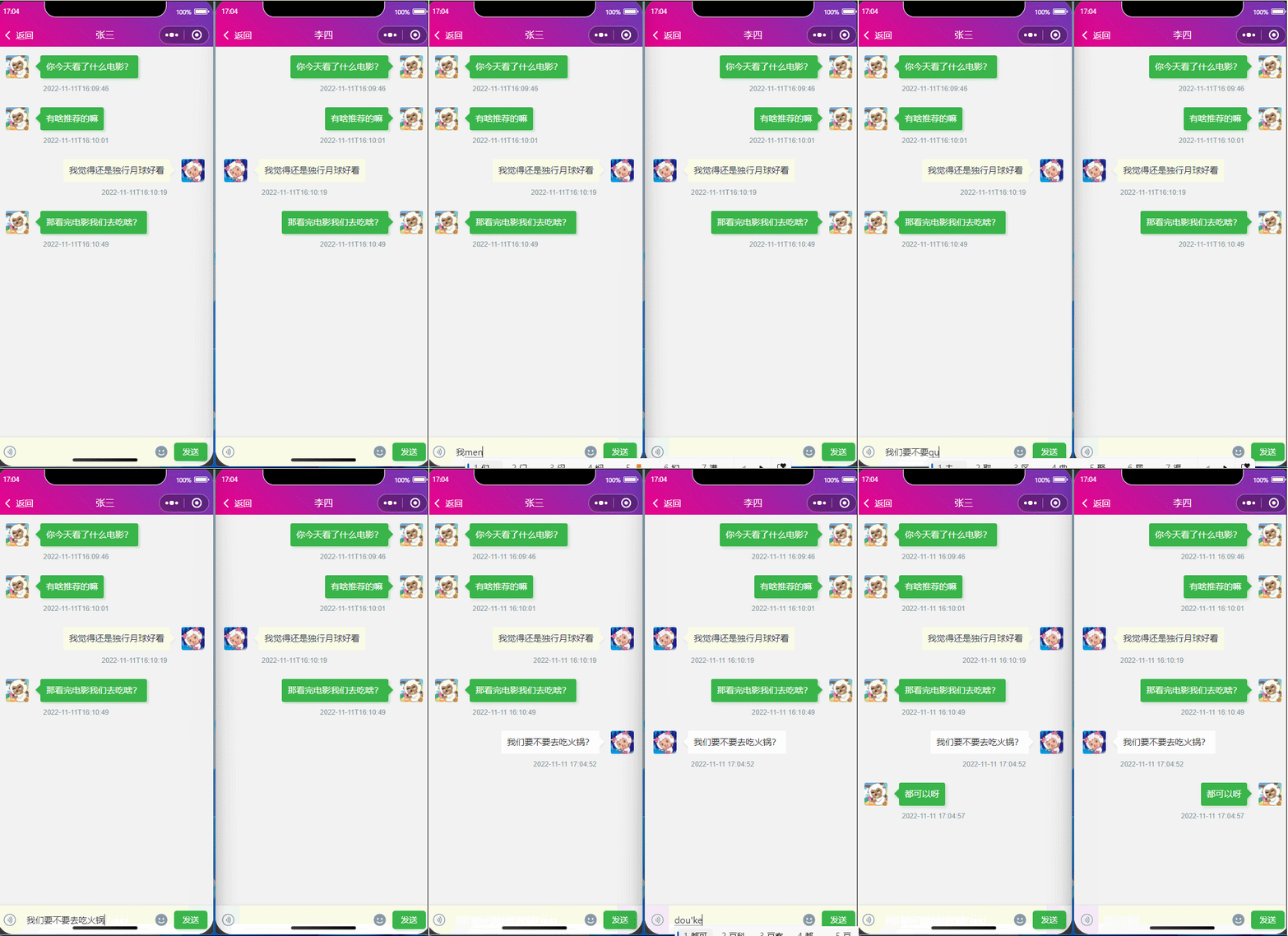
此文主要实现在小程序内聊天对话功能,使用Java作为后端语言进行支持,界面友好,开发简单。
二、开发流程及工具准备
2.1、注册微信公众平台账号。
2.2、下载安装IntelliJ IDEA(后端语言开发工具),Mysql数据库,微信Web开发者工具。
三、开发步骤
1.创建maven project
先创建一个名为SpringBootDemo的项目,选择【New Project】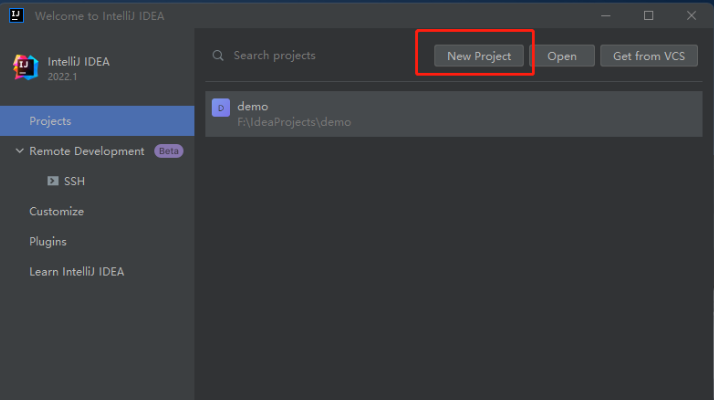
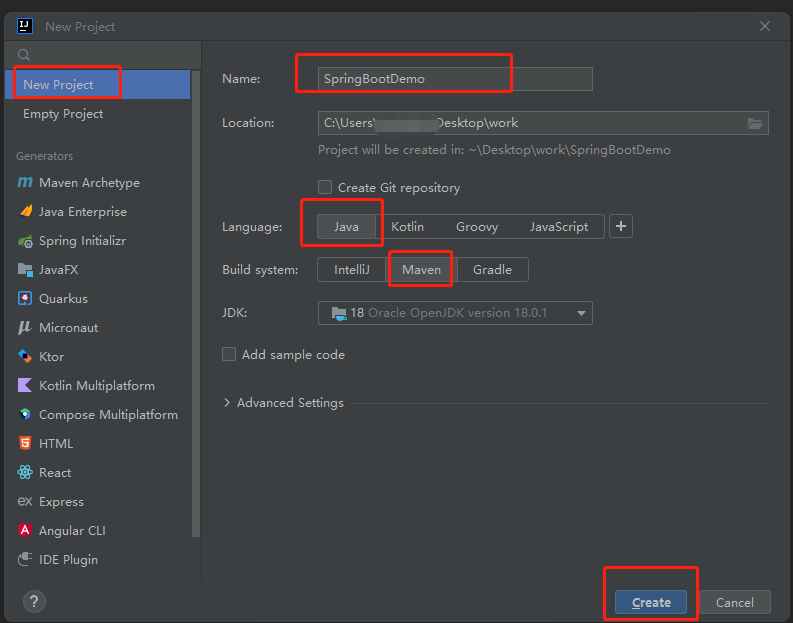
然后在弹出的下图窗口中,选择左侧菜单的【New Project】(注:和2022之前的idea版本不同,这里左侧没有【Maven】选项,不要选【Maven Archetype】!!!),输入Name(项目名):SpringBootDemo,language选择【java】,build system选择【maven】,然后选择jdk,我这里选的是jdk18.
 然后点击【Create】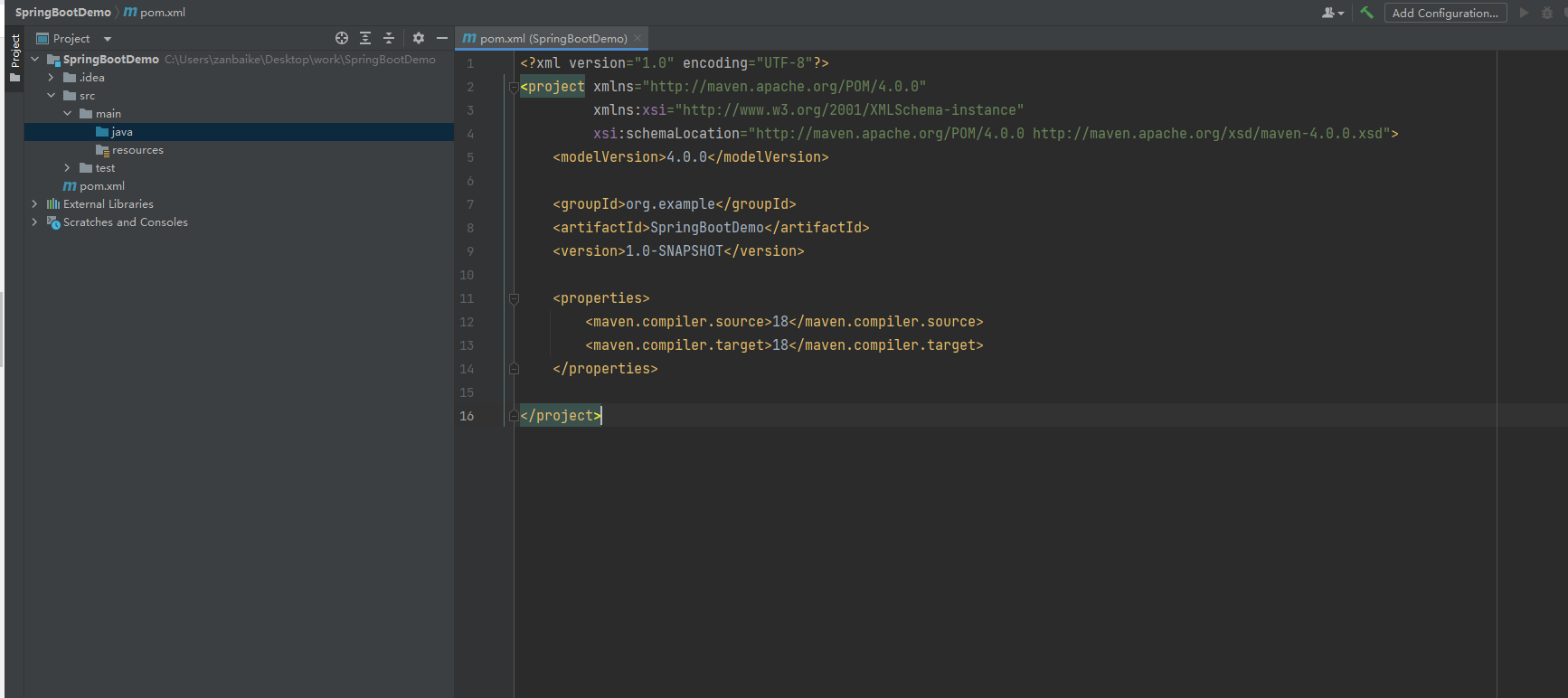
2.在project下创建module
点击右键选择【new】—【Module…】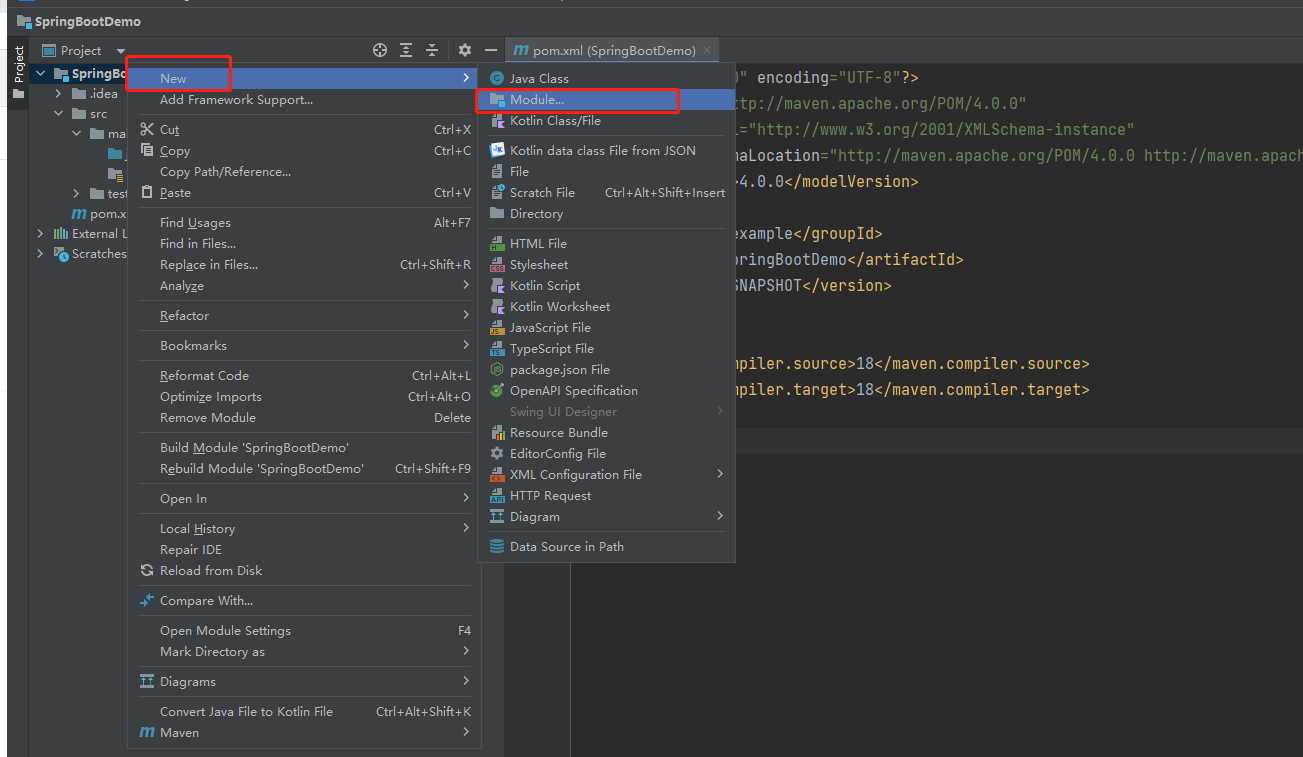
左侧选择【Spring initializr】,通过idea中集成的Spring initializr工具进行spring boot项目的快速创建。窗口右侧:name可根据自己喜好设置,group和artifact和上面一样的规则,其他选项保持默认值即可,【next】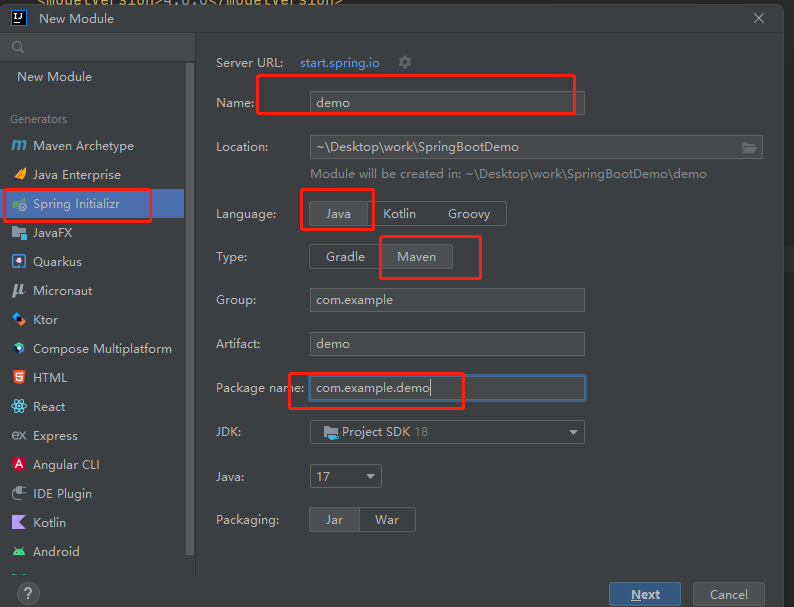
Developer Tools模块勾选【Spring Boot DevTools】,web模块勾选【Spring Web】
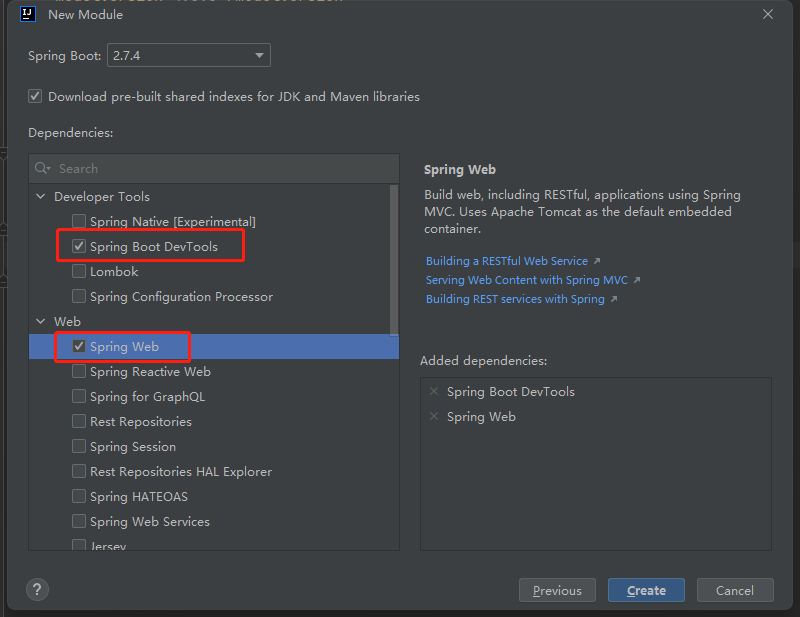
此时,一个Springboot项目已经搭建完成,可开发后续功能
3.编写一个消息实体类、Mapper、service(三层架构)
@Data public class Chat { @TableId(type = IdType.AUTO) private Long id; private Long userId; private Long targetUserId; private LocalDateTime createTime; private String userName; private String targetUserName; private String content; } 由于我们使用mybatis-plus,所以简单的增删改查不用自己写,框架自带了,只需要实现或者继承他的Mapper、Service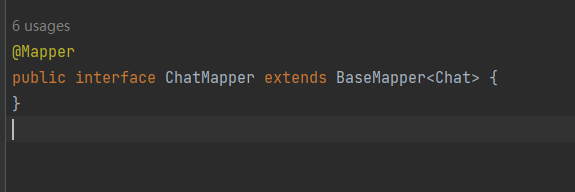

4.编写WebSocket服务类
@ServerEndpoint("/imserver/{userId}") @Component public class WebSocketService { /** * 连接建立成功调用的方法 * * 1.用map存 每个客户端对应的MyWebSocket对象 */ @OnOpen public void onOpen(Session session, @PathParam("userId") String userId) { this.session = session; this.userId = userId; if (webSocketMap.containsKey(userId)) { webSocketMap.remove(userId); webSocketMap.put(userId, this); //加入set中 } else { webSocketMap.put(userId, this); //加入set中 } } /** * 自定义关闭 * * @param userId */ public static void close(String userId) { if (webSocketMap.containsKey(userId)) { webSocketMap.remove(userId); } } /** * 获取在线用户信息 * * @return */ public static Map getOnlineUser() { return webSocketMap; }
5.创建控制器Controller
先创建Controller Package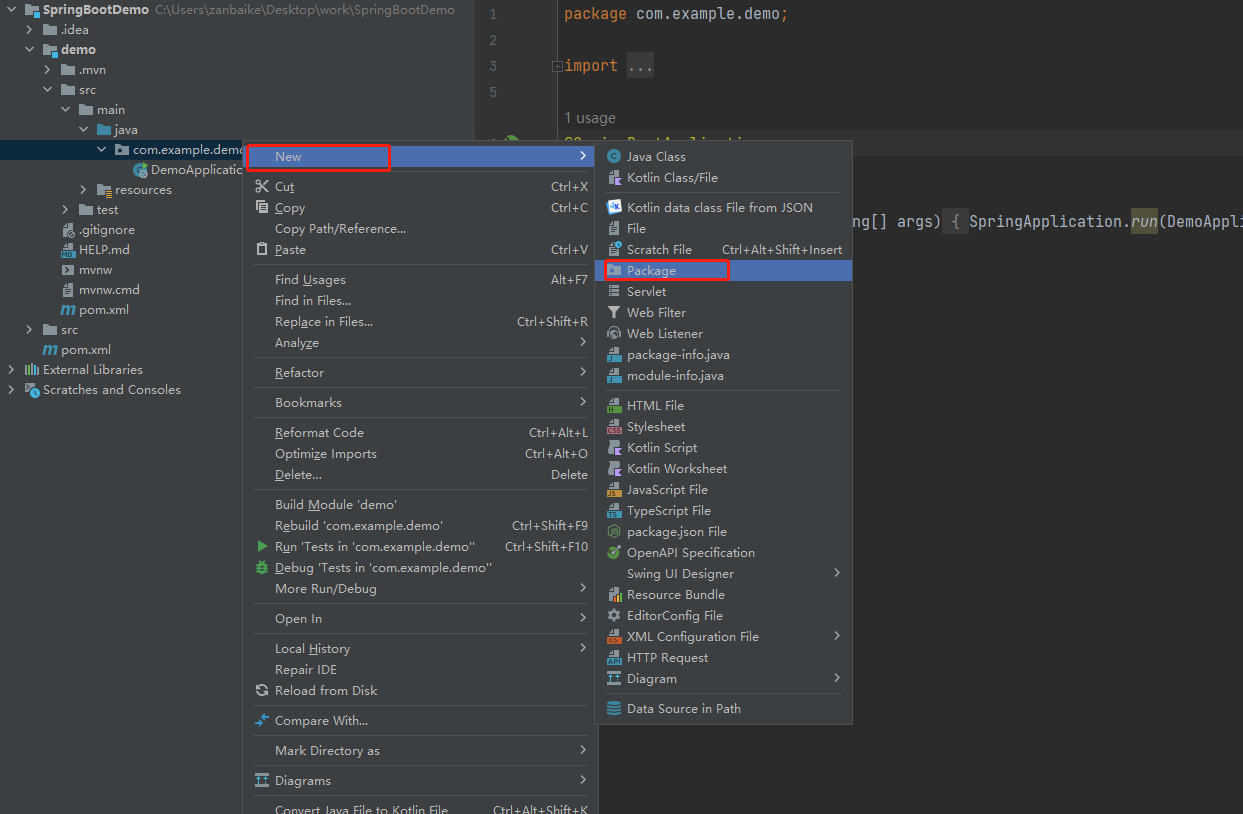
创建一个Controller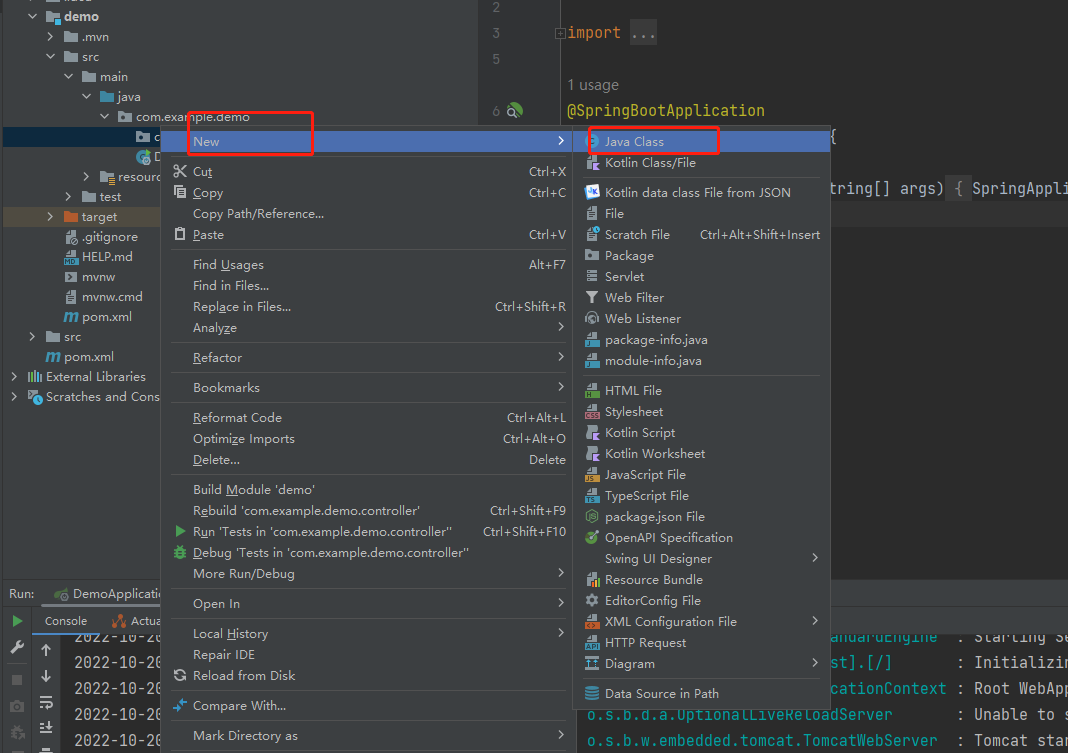
输入类名,选在【Class】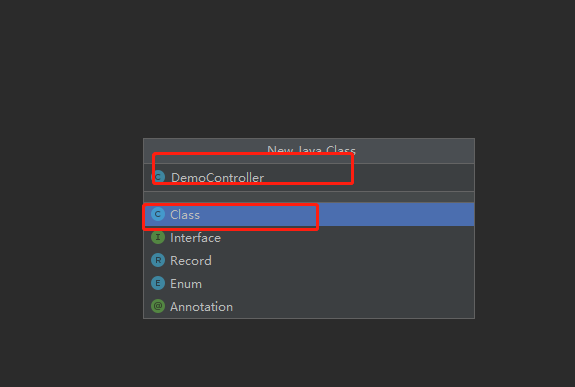
因为要编写Rest风格的Api,要在Controller上标注@RestController注解
6.创建具体的Api接口
@RestController public class DemoController { @Autowired private ChatService chatService; @PostMapping("/push") public ResponseEntity pushToWeb(@RequestBody Chat chat) throws IOException { chat.setCreateTime(LocalDateTime.now()); chatService.save(chat); WebSocketService.sendInfo(chat); return ResponseEntity.ok("MSG SEND SUCCESS"); } @GetMapping("/close") public String close(String userId) { WebSocketService.close(userId); return "ok"; } @GetMapping("/getOnlineUser") public Map getOnlineUser() { return WebSocketService.getOnlineUser(); } } 7.小程序代码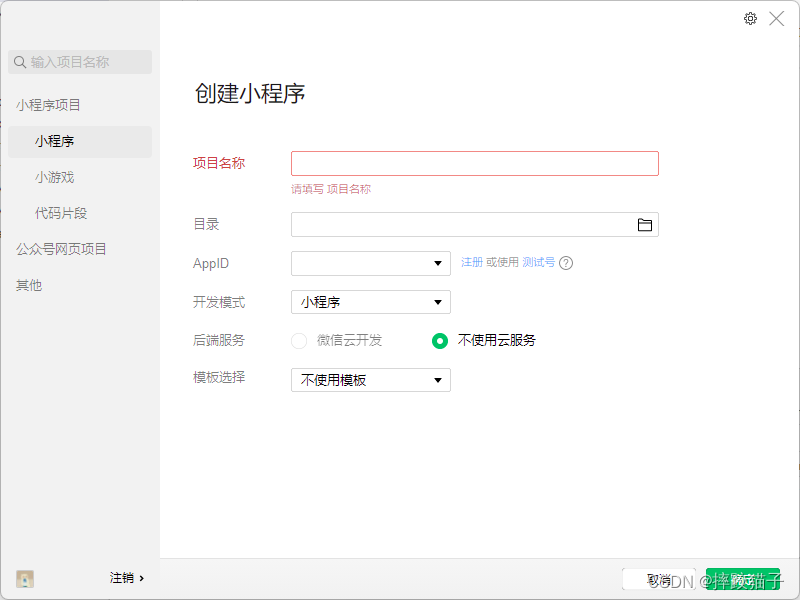
3.20、在pages文件夹下面创建一个文件夹并新建对应的page文件,并实现聊天对话框样式。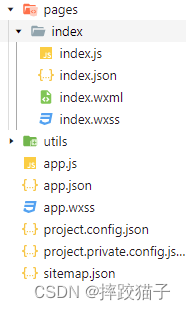
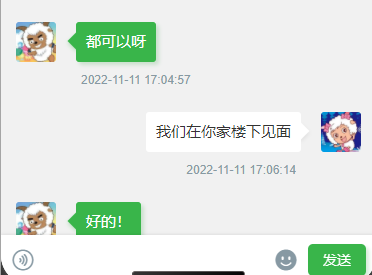
{chatData}}"> {{item.content}} {{item.createTime}} {InputBottom!=0?'cur':''}}" style="bottom:{{InputBottom}}px"> {content}}" bindinput="formMsg" bindfocus="InputFocus" bindblur="InputBlur" adjust-position="{{false}}" focus="{{false}}" maxlength="300" cursor-spacing="10"> .cu-chat { display: flex; flex-direction: column; } .cu-chat .cu-item { display: flex; padding: 30rpx 30rpx 70rpx; position: relative; } .cu-chat .cu-item>.cu-avatar { width: 80rpx; height: 80rpx; } .cu-chat .cu-item>.main { max-width: calc(100% - 260rpx); margin: 0 40rpx; display: flex; align-items: center; } .cu-chat .cu-item>image { height: 320rpx; } .cu-chat .cu-item>.main .content { padding: 20rpx; border-radius: 6rpx; display: inline-flex; max-width: 100%; align-items: center; font-size: 30rpx; position: relative; min-height: 80rpx; line-height: 40rpx; text-align: left; } .cu-chat .cu-item>.main .content:not([class*="bg-"]) { background-color: var(--white); color: var(--black); } .cu-chat .cu-item .date { position: absolute; font-size: 24rpx; color: var(--grey); width: calc(100% - 320rpx); bottom: 20rpx; left: 160rpx; } .cu-chat .cu-item .action { padding: 0 30rpx; display: flex; align-items: center; } .cu-chat .cu-item>.main .content::after { content: ""; top: 27rpx; transform: rotate(45deg); position: absolute; z-index: 100; display: inline-block; overflow: hidden; width: 24rpx; height: 24rpx; left: -12rpx; right: initial; background-color: inherit; } .cu-chat .cu-item.self>.main .content::after { left: auto; right: -12rpx; } 3.21、在JS中实现请求聊天列表及新增聊天信息的接口,使用websocket进行实时刷新聊天功能,提供onOpen、onClose、onError、onMessage方法。
var socket = null; Page({ data: { InputBottom: 0, chatData: [], content: '', //需要发送的内容 userId: 2, }, onLoad() { let that = this; socket = wx.connectSocket({ url: 'ws://localhost:8080/imserver/2', success: res => { console.info('创建连接成功'); //socketTaskId: 22 // console.info(res); } }); // console.info(socket); //事件监听 socket.onOpen(function () { console.info('连接打开成功'); }); socket.onClose(function () { console.info('连接关闭成功'); }); socket.onError(function () { console.info('连接报错'); }); //服务器发送监听 socket.onMessage(function (e) { console.info(e.data); var list=JSON.parse(e.data); that.setData({chatData:list}); }); wx.request({ url: 'http://localhost:8080/getMessage?userId=2', method: 'get', dataType: "json", success: function (res) { that.setData({ chatData: res.data }); } }); wx.pageScrollTo({ scrollTop: 9999 }) }, InputFocus(e) { this.setData({ InputBottom: e.detail.height }) }, formMsg(e) { this.setData({ content: e.detail.value.trim() }) }, //发送消息 sendMsg() { let that = this; let info = { userName: '李四', content: that.data.content, userId: 2, targetUserId: 1, targetUserName: "张三" }; wx.request({ url: 'http://localhost:8080/push', data: JSON.stringify(info), method: 'post', contentType:"application/json", dataType: "json", success: function (identify) { that.setData({ content: '', }); //发送消息后 wx.pageScrollTo({ scrollTop: 9999 }) } }); }, InputBlur(e) { this.setData({ InputBottom: 0 }) } }) //查询消息列表 function selectMsg() { let that = this; }; 3.22、准备两张头像,在WXML中根据对应的用户名判断聊天记录是否是自己发出,并赋对应的class样式,后续这个步骤可以直接在接口返回的数据中进行判断,请求查询列表的接口将用户token作为参数传输过去即可。


{item.userId=='2'?'self':''}}" wx:for="{{chatData}}"> {item.userId=='1'}}"> {item.userId=='1'?'bg-green':''}}"> {{item.content}} {item.userId=='2'}}"> {{item.createTime}} 3.23、请求聊天记录的接口和新增聊天信息的接口都跑通后,我们将现有小程序复制一份,在复制出的这份小程序中的JS将用户名改为张三、李四,然后发送消息。这里需要注意的是,我们需要在每次发送消息后将页面内容定位在底部,一直保持一个阅读最新消息的状态。
wx.pageScrollTo({ scrollTop: 9999 }) 这里采用的一个比较简单的方式实现的聊天功能,用到了ws长连接的方式来实现这个功能,完成后源码会以资源的形式上传提供给大家。